
This guide explains how to connect a Synaccess PDU to an LDAP/LDAPS directory for user authentication using the built-in web interface.
Before you start
This setup guide requires knowledge of LDAP server and directory settings. Consult your LDAP Administrator if you are unfamiliar with these settings.
Important: To remotely validate users using LDAP, the PDU searches the user in the LDAP directory. When LDAP user entry is found, the PDU will check for the user's 'memberOf' attribute to determine its group membership. The LDAP user's membership must match at least one user role in the PDU in order to determine its permissions.
Prerequisites
- PDU network access to your LDAP server (ports 389 for STARTTLS or 636 for LDAPS).
- An LDAP account that can search users (Bind DN and password), or confirmation that anonymous bind is allowed.
- Directory details from your LDAP admin:
- Server host name or IP.
- Plain LDAP port (default 389) and LDAPS port (default 636).
- Security type: No Security, LDAPS, or STARTTLS.
- Base DN for searches (e.g.,
ou=Users,dc=example,dc=com). - Login attribute (e.g.,
uidorsAMAccountName). - User object class (e.g.,
inetOrgPerson). - Group membership attribute must be present (
memberOf); group CNs must match PDU role names.
- CA certificate for the LDAP server when LDAPS or STARTTLS is selected.
Configure LDAP in the web UI
- Log in to the PDU web UI with an administrator account.
- Navigate to Network → Remote Authentication.
- Set Remote Authentication to LDAP.
- (Optional) Enable Fallback to Local Authentication if Remote Authentication Failed to allow local accounts when LDAP is unreachable.
- In LDAP Configuration, fill the fields:
- LDAP Server Host: Hostname or IP (e.g.,
ldap.example.com). - Port: Plain LDAP port (default
389). - TLS Port: LDAPS port (default
636). - LDAP Security:
- No Security: Plaintext LDAP (not recommended).
- TLS Security: LDAPS on the TLS Port.
- TLS/Start Security: STARTTLS upgrade on the plain LDAP Port.
- CA Certificate: Click Upload/Replace SSL Certificate and select your LDAP server’s issuing CA PEM. With LDAPS/STARTTLS, certificate validation is enforced.
- Bind DN (Distinguished Name): Service account DN (e.g.,
uid=myBindDNUser,ou=Users,dc=example,dc=com). - Bind PW DN: Password for the Bind DN.
- Base DN for Search: Search base (e.g.,
ou=Users,dc=example,dc=com). - User Entry Object Class: Usually
inetOrgPerson(or your directory’s user object class). - Login Attribute: Attribute used to match the username (e.g.,
uidorsAMAccountName). - Enable Anonymous Bind: Turn on only if your LDAP server allows anonymous search.
- LDAP Server Host: Hostname or IP (e.g.,
- Click Save.
Sample Configuration:
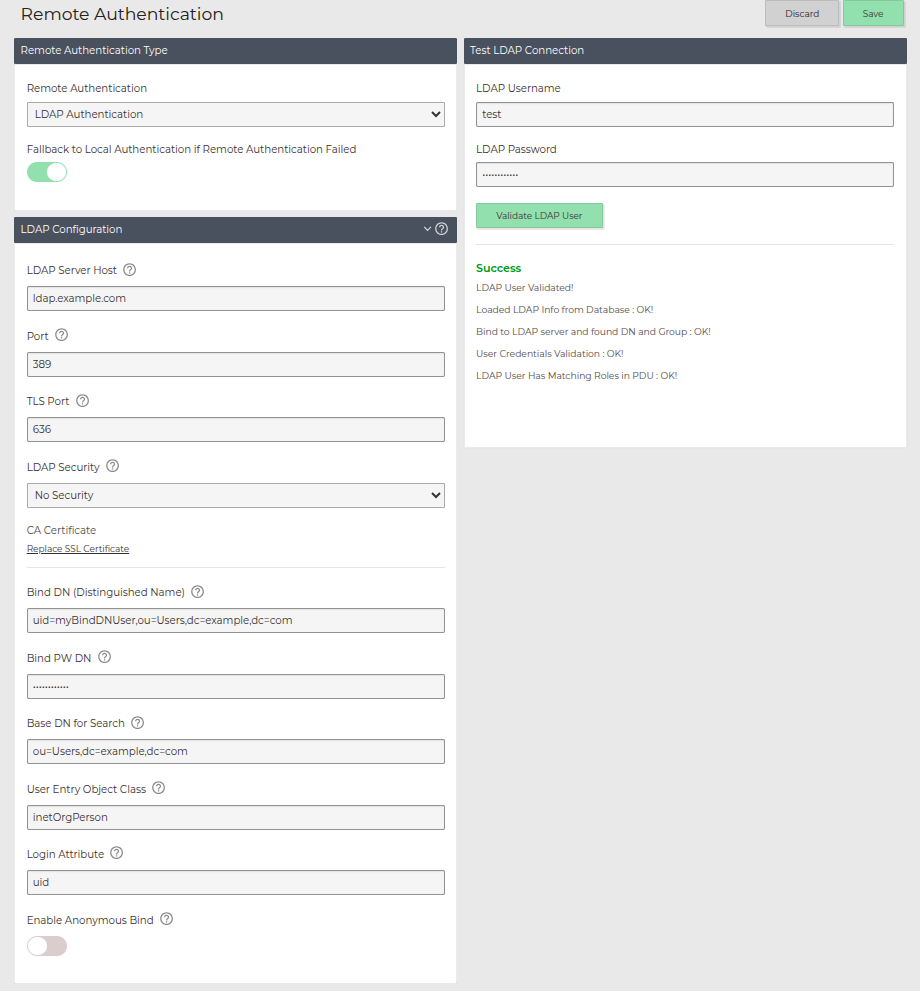
Test the configuration
- In Network → Remote Authentication, scroll to Test LDAP Connection.
- Enter an LDAP username and password.
- Click Validate LDAP User.
- The test returns four checks:
- Loaded LDAP Info from Database
- Bind to LDAP server and found DN and Group
- User Credentials Validation
- LDAP User Has Matching Roles in PDU
All should report OK! for a successful setup.
Role mapping rules
- The PDU reads the user’s
memberOfgroups and matches group CN values to PDU role names. - Create PDU roles that exactly match the LDAP group names you want to grant access.
- If no matching role is found, authentication fails even if the password is correct.
Troubleshooting
- Test with a known-good LDAP user via Test LDAP Connection and review the four status lines.
- Verify Bind DN/password and Base DN—wrong values prevent the PDU from finding users.
- Ensure group CNs match PDU role names; otherwise “Has Matching Roles” will fail.