
The Secondary Network Interface lets your PDU connect to a second network through a USB-to-Ethernet adapter. This is useful if you want a backup/redundant network connection, or if you want the PDU to pass traffic between two ethernet ports.
Requirements
Before you begin, make sure you have:
- A Synaccess-compatible USB-to-Ethernet adapter plugged into the PDU's USB port.
- A supported PDU:
- All SynLink SP PDUs, or
- DX units running compatible controller hardware. If your NetBooter does not show the secondary interface options, contact Synaccess to confirm compatibility.
Please contact Synaccess for information about the compatible USB-to-Ethernet accessory.
Where to find it in the web interface
- Log in to the PDU web interface.
- Open the Network section in the left-hand navigation.
- Click IP.
You will see the Network IP Configuration page.
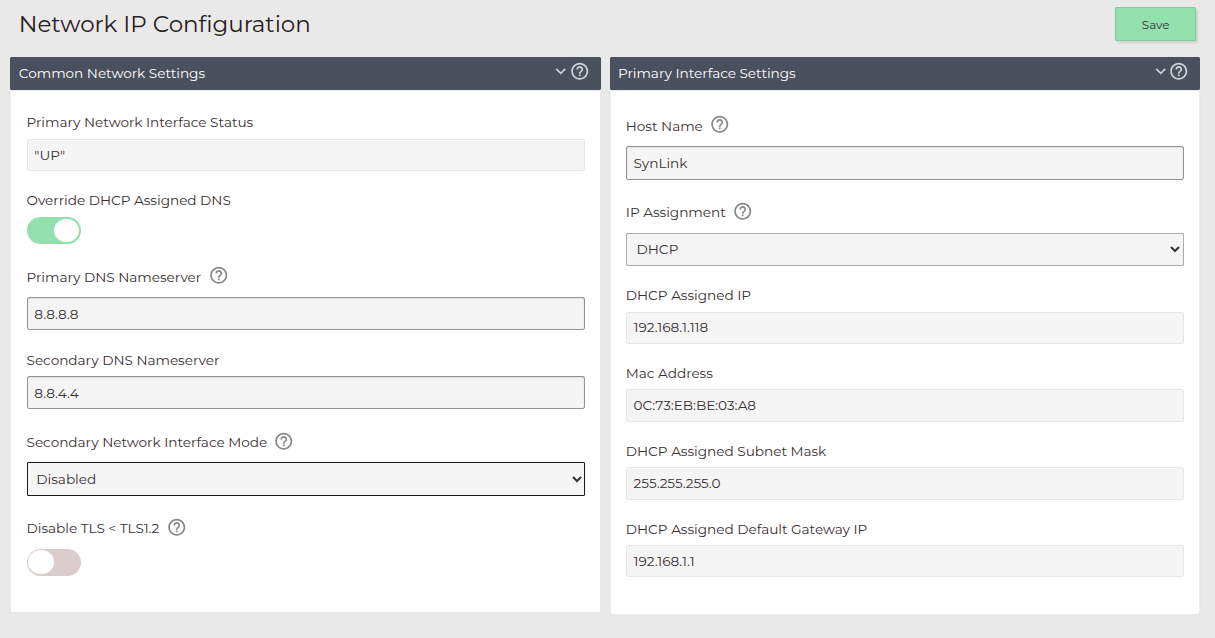
Step 1 — Choose a Secondary Network Interface Mode
Under Common Network Settings, find the Secondary Network Interface Mode dropdown.
There are three options:
| Mode | What it does |
|---|---|
| Disabled | The USB-Ethernet adapter is not used. Default setting. |
| Bridge Mode | The PDU passes network traffic between the primary ethernet port and the USB-Ethernet port. Useful when you want to daisy-chain a device behind the PDU. |
| Secondary Network Interface | Treats the USB-Ethernet port as a separate, independent network interface. Use this for a backup or redundant connection on a different network. |
After selecting a mode, click Save.
Note: Changing this setting will restart the network interface on the PDU. You will temporarily lose connection.
Step 2 — Confirm interface status
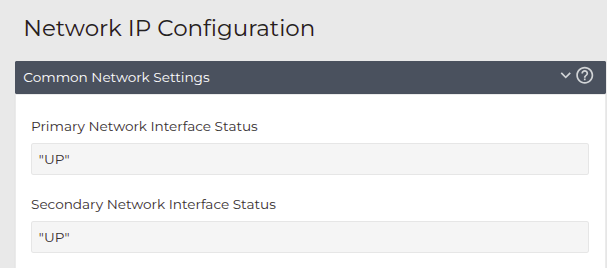
Once the network has restarted, return to the same page. Under Common Network Settings you will see:
- Primary Network Interface Status — status of the built-in ethernet port (labeled ETH 10/100 on the front panel).
- Secondary Network Interface Status — status of the USB-Ethernet adapter. This becomes active once a supported adapter is detected and the mode is set to anything other than Disabled.
If the secondary status does not come up:
- Verify the USB-Ethernet adapter is firmly seated in the USB port.
- Verify it is a Synaccess-compatible adapter.
- Verify the ethernet cable is connected to the adapter and to your network.
Step 3 — Configure the Secondary Interface (Secondary Network Interface mode only)
If you selected Secondary Network Interface in Step 1, a new section titled Secondary Interface Settings will appear at the bottom of the page.
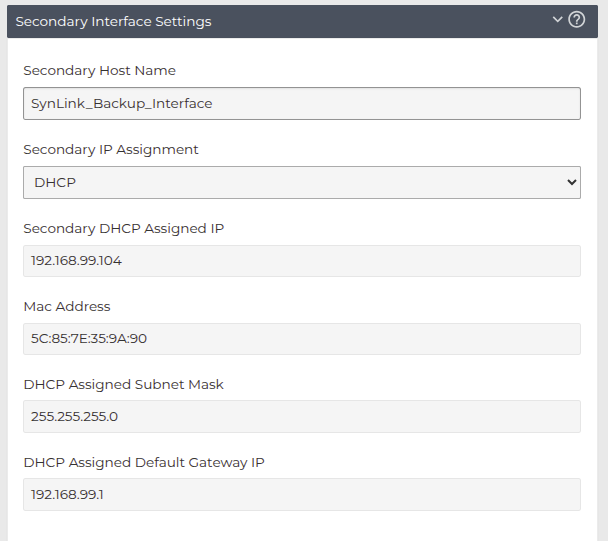
Fill in the following:
| Field | Description |
|---|---|
| Secondary Host Name | Hostname for the secondary interface. |
| Secondary IP Assignment | Choose DHCP for automatic assignment, or Static to enter values manually. A DHCP server must be present on the network for DHCP mode. |
| Secondary Static IP | IP address for the secondary interface. Only used in Static mode. |
| Subnet Mask | Subnet mask for the secondary interface. Only used in Static mode. |
| Default Gateway IP | Gateway IP for the secondary interface. Only used in Static mode. |
When DHCP is selected, the DHCP Assigned IP, DHCP Assigned Subnet Mask, and DHCP Assigned Default Gateway IP fields will populate automatically once a lease is granted. The Mac Address of the adapter is also shown for reference.
Click Save to apply.
Note: Saving these settings will restart the network interface on the PDU. You will temporarily lose connection.
Bridge Mode usage
When Bridge Mode is selected, no additional configuration is required. The PDU forwards network traffic between the primary ethernet port and the USB-Ethernet port automatically. No separate IP address is configured for the bridge.
This is useful when you want another device (for example, a server or another piece of equipment in the rack) to share the PDU's network drop without running a second cable from the switch.
Tips
- The Primary Interface settings are configured separately under the Primary Interface Settings section on the same page. They are unaffected by the Secondary Network Interface Mode.
- If you lose access to the PDU after changing these settings, you can still reach it via the other interface (when in Secondary Network Interface mode) or recover via the device's front-panel/serial interface.
Need help?
If you do not see the Secondary Network Interface Mode dropdown on your device, your hardware may not support this feature. Please contact Synaccess support to confirm compatibility and to order a supported USB-to-Ethernet accessory.