
Overview
AutoPing monitors a target host from the PDU by sending periodic ICMP pings. If the configured target stops responding for the configured number of failed checks, the PDU can run one or more recovery actions, such as power cycling an outlet.
Use AutoPing when a connected device, router, modem, or network path should be automatically recovered after it stops responding to ping.
How AutoPing Works
AutoPing has three main parts:
- Ping Settings
- Ping Interval: how often the PDU checks the target.
- Ping Timeout: how long the PDU waits for each ping response.
- AutoPing Event
- The target IP address or hostname to monitor.
- The number of consecutive failed checks required before recovery action runs.
- The network interface used for the ping.
- Action
- The operation to run when the event triggers, such as Outlet Reboot.
The event is stateful. After AutoPing triggers and runs its action, the same event stays in the triggered state until the target responds successfully for three consecutive AutoPing checks. This prevents a failed device from being power cycled repeatedly without first proving that connectivity recovered.
AutoPing Operation Details
When AutoPing power cycles an outlet, it does not continuously reboot that outlet until connectivity comes back.
The process is:
- The PDU pings the configured target on each Ping Interval.
- Consecutive ping failures increase the AutoPing failure counter.
- When the configured failure threshold is reached, the event triggers once.
- The configured action runs once, for example Outlet Reboot.
- The outlet is turned off, then turned back on after the outlet reboot time.
- AutoPing keeps checking the target, but the same event will not run its action again while it remains triggered.
- The event clears only after three consecutive successful pings.
- After the event clears, a new set of consecutive failures can trigger another recovery action.
In practical terms: connectivity must be re-established long enough for three successful AutoPing checks before that same AutoPing event can begin a new reboot cycle.
Reboot Timing
Two timing groups matter.
Time Until AutoPing Triggers
This depends on:
- Ping Interval
- Ping Timeout
- # Fails Before Action
- where in the interval the failure starts
Current default ping settings are:
- Ping Interval:
5000 ms - Ping Timeout:
5000 ms
Example:
- Ping Interval:
5000 ms - Fails Before Action:
3 - Action: Outlet Reboot
Outlet Power Cycle Duration
When the action is Outlet Reboot, the outlet turns off immediately and turns back on after the configured reboot time.
The reboot duration comes from:
- the outlet's Custom Reboot Time, if enabled, or
- the device Global Outlet Reboot Time
The current default Global Outlet Reboot Time is 15 seconds.
When to Use This Feature
Use AutoPing recovery for:
- rebooting a modem or router when upstream connectivity is lost
- power cycling a network appliance that stops responding
- triggering notification actions when an important host disappears
- recovering remote equipment without requiring manual access to the site
Avoid pointing AutoPing at an unreliable public host if the recovery action controls critical equipment. Pick a target that represents the device or path you actually want to recover.
How to Set Up AutoPing in the Web UI
The screenshots below are examples from a PDU. Use the same fields on your device, but choose the outlet, target address, and interface that match your installation.
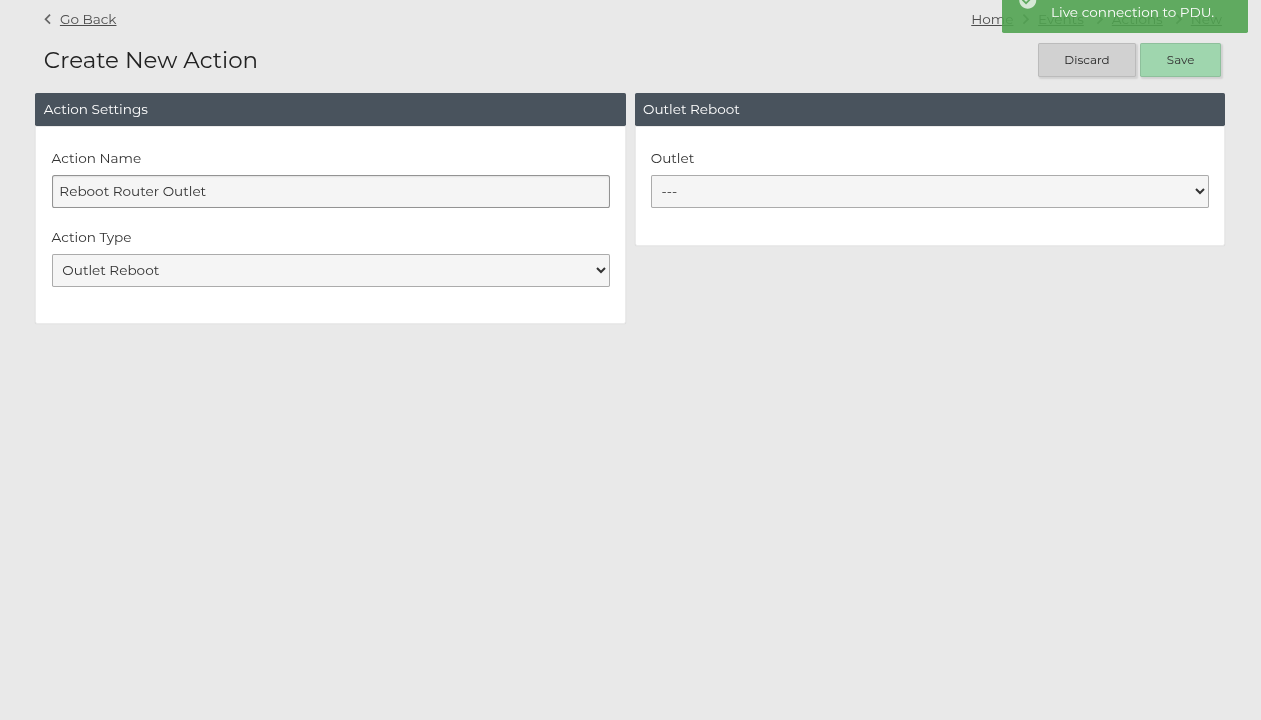
- Go to Automation.
- In the Actions section, select Create New Action.
- Select Outlet Reboot.
- Choose the outlet that powers the device to recover.
- Save the action.
The saved action is what the AutoPing event will run later when the target fails.
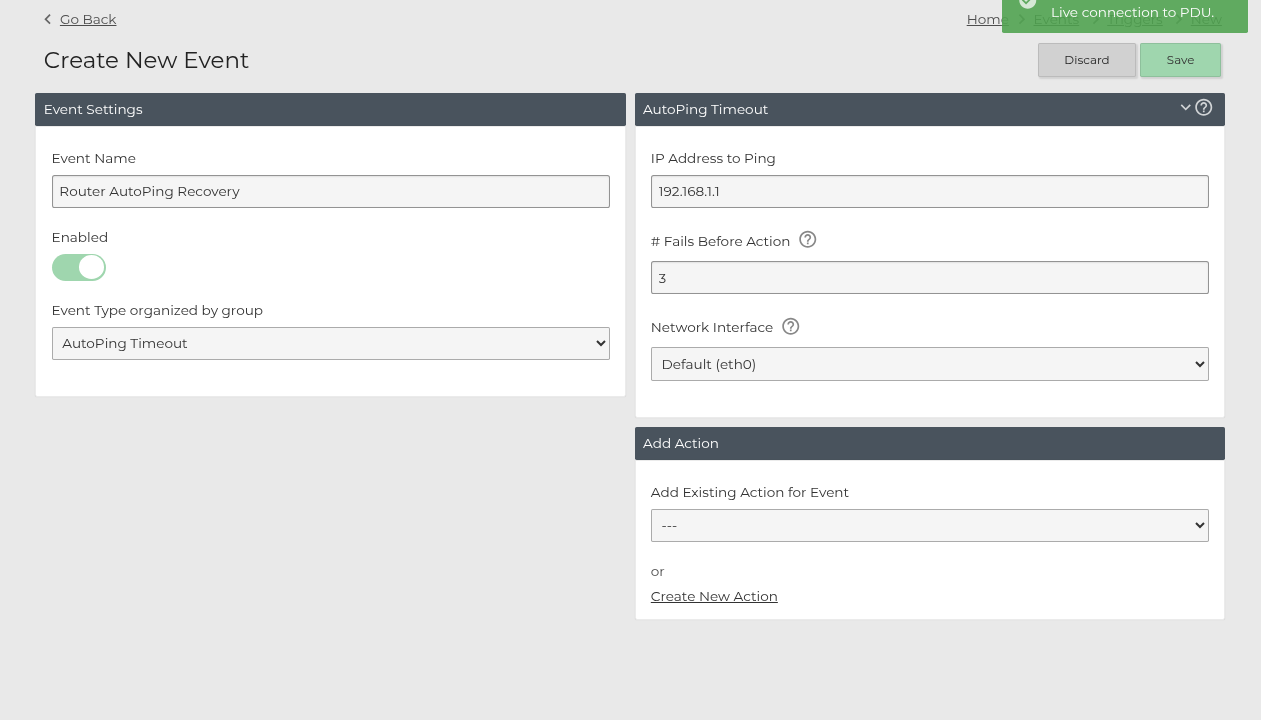
- Go back to Automation.
- Select New Event.
- Set the event type to AutoPing Timeout.
- Enter the target IP address or hostname to ping.
- Enter # Fails Before Action.
- Select the network interface.
- In Add Action, select the Outlet Reboot action you created earlier.
- Save the event.
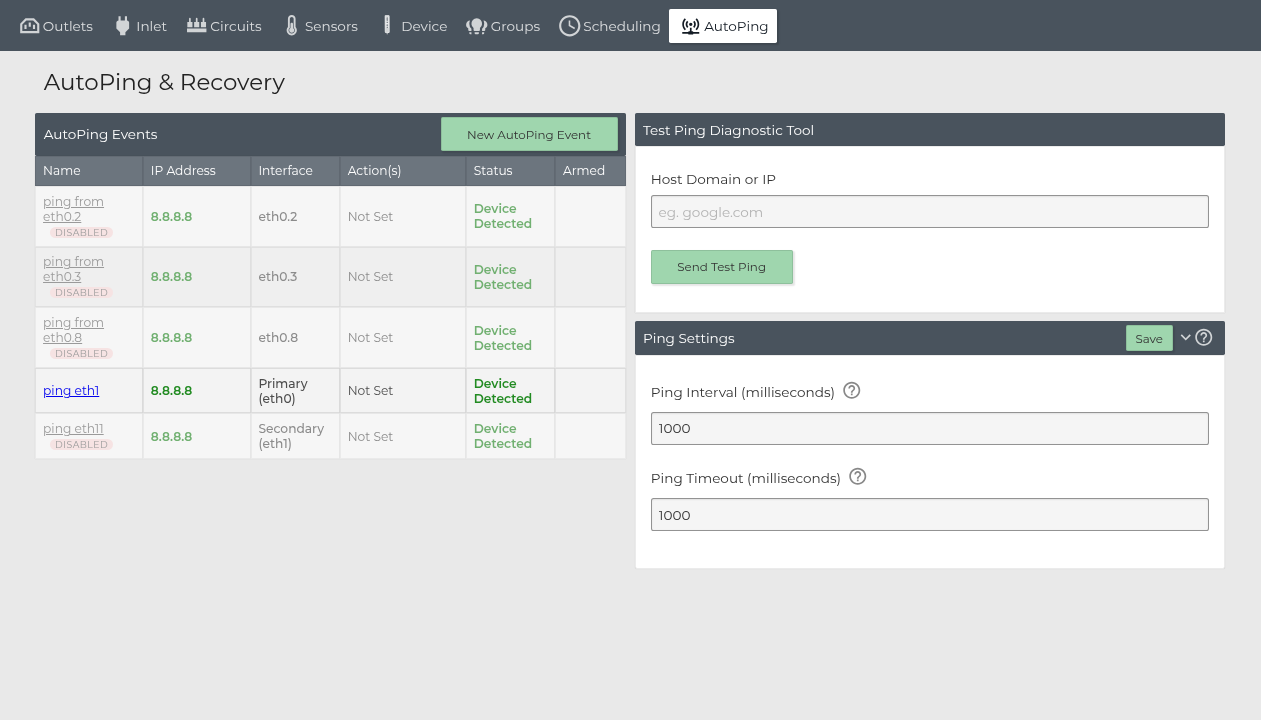
- Go to System > AutoPing to review AutoPing events and global ping settings.
- Use Test Ping Diagnostic Tool to verify the target is reachable from the PDU.
Quick setup summary:
- Automation > Create New Action
- Save the Outlet Reboot action.
- Automation > New Event
- Create the AutoPing Timeout event.
- Associate the saved action with the event.
- Save the event.
Network Interface Selection
The AutoPing event can be bound to a specific interface.
- Default: follows the PDU primary path. On bridge systems this uses
br0; otherwise it useseth0. - Primary: uses the primary interface path.
- Secondary: uses the secondary USB NIC path, when available.
- VLAN interfaces: available VLAN subinterfaces can be selected, such as
eth0.20.
Use Default unless the target must be tested through a specific WAN, NIC, or VLAN.
API Examples
Create an Outlet Reboot action first:
curl -k -b cookies.txt \
  -H "Content-Type: application/json" \
  -d '{
    "name": "Reboot Router Outlet",
    "code": 12,
    "params": ["1"]
  }' \
  https://<pdu-host>/api/actions
Then create the AutoPing event using the action id returned by the action request:
curl -k -b cookies.txt \
  -H "Content-Type: application/json" \
  -d '{
    "name": "Router AutoPing Recovery",
    "code": 12,
    "params": ["192.168.1.1", "3", "default"],
    "actions": [5],
    "enabled": true
  }' \
  https://<pdu-host>/api/events
Update global AutoPing ping settings:
curl -k -b cookies.txt \
  -H "Content-Type: application/json" \
  -d '{
    "autopingInterval": 5000,
    "autopingTimeout": 5000
  }' \
  https://<pdu-host>/api/conf
Expected Behavior
- A successful ping keeps the event untriggered.
- Consecutive failures move the event toward the trigger threshold.
- A successful ping before the trigger threshold resets the failure streak.
- Once triggered, actions run once for that trigger instance.
- The event remains triggered until three consecutive successful checks occur.
- After the event clears, future consecutive failures can trigger the action again.
FAQ
Can AutoPing get stuck in an endless reboot loop?
Not from a single unchanged AutoPing event. After the action runs, the event stays triggered and will not run the same action again until the target has three consecutive successful ping checks. If connectivity never comes back, the event remains triggered and does not keep power cycling the outlet.
Does connectivity have to come back before the next reboot cycle can start?
Yes. The target must respond successfully for three consecutive AutoPing checks. Only then is the event cleared and eligible to trigger again on a new failure streak.
Will AutoPing keep pinging after it triggers?
Yes. The PDU continues to ping the target so it can detect when the target has recovered and clear the event.
How long is the outlet turned off during an Outlet Reboot action?
The outlet is turned back on after the outlet reboot duration. If the outlet has Custom Reboot Time enabled, that value is used. Otherwise the PDU uses Global Outlet Reboot Time, which defaults to 15 seconds.
What happens if the rebooted device takes a long time to boot?
The AutoPing event remains triggered while the device is booting and still not responding. It clears only after the device responds to three consecutive checks. This avoids repeated power cycles during a normal boot period.
What target should I ping?
For outlet recovery, ping the device or network path that proves the connected equipment is usable. For example, if the PDU controls a router, ping the router LAN IP or an upstream gateway depending on what failure you want to recover from.
What if the target blocks ICMP?
AutoPing depends on ping responses. If the target blocks ICMP, AutoPing will treat it as unavailable. Choose a target that reliably answers ICMP.
Can multiple actions run from one AutoPing event?
Yes. An AutoPing event can have multiple actions, such as sending a notification and rebooting an outlet. All configured actions run when the event triggers.
Limitations
- AutoPing validates ICMP reachability only. It does not prove that DNS, HTTPS, VPN, or application traffic works.
- The target should be stable. If the target itself is unreliable, AutoPing may trigger even when the local device is healthy.
- Avoid using very short intervals and low failure counts for slow-booting equipment.
- If the wrong interface is selected, the PDU may test the wrong path or fail to reach the target.
- Existing triggered events must clear before they can trigger actions again.